Your team lives in Slack, but the answers they need live in Salesforce. So all day, people tab away from a conversation, dig through records, copy something back, and lose the thread. For years the only fix was custom middleware — a bot, an integration user, brittle API glue someone has to maintain forever. That era is ending. With Salesforce Hosted MCP Servers (generally available since April 29, 2026), you can bring governed Salesforce data and actions straight into Slack with no integration code at all. In this post I’ll walk you through what they are, the standard and custom servers, the exact setup, and the security model that makes it safe.
What I’ll Cover in This Blog
- ✔️ A real scenario — the team stuck tabbing between Slack and Salesforce
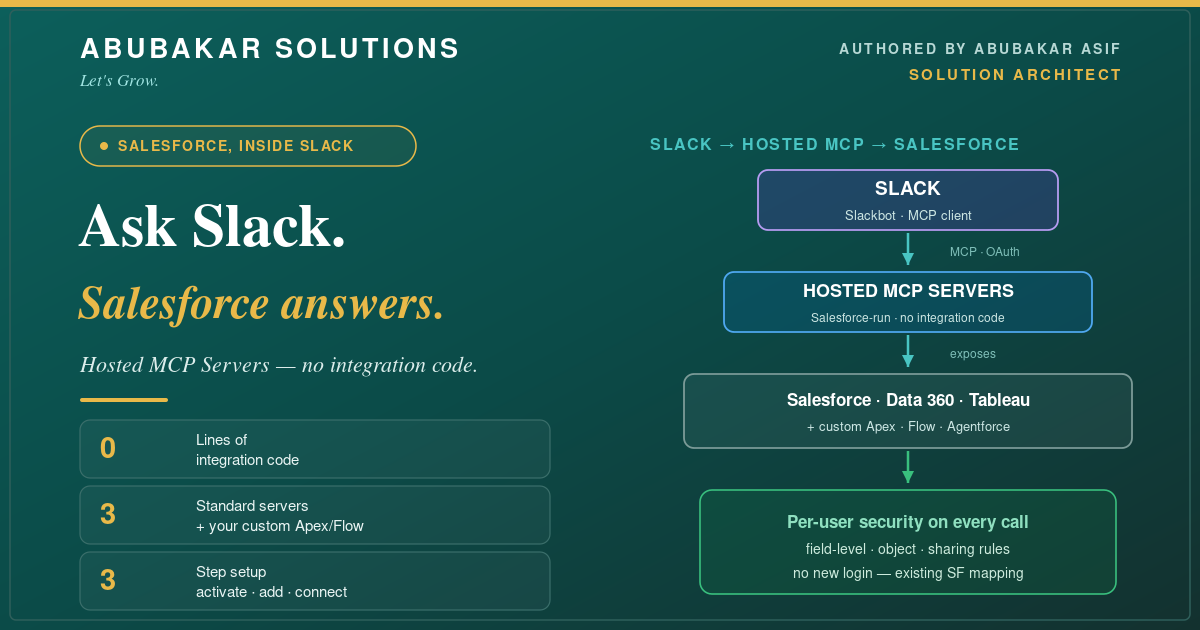
- ✔️ What Salesforce Hosted MCP Servers are — and the architecture
- ✔️ The standard servers and the custom tools you can expose
- ✔️ The 3-step, no-code setup — and how a request actually flows
- ✔️ Best practices and the pitfalls to avoid
Now, let’s dive in. 🔥
The Scenario
Meridian Freight runs a 30-person sales team on Salesforce and a 24/7 operations channel in Slack. A dispatcher sees a shipment issue in Slack and needs the account’s open cases, the shipment record, and the account owner — right now. Today that’s three tabs, two searches, and ninety seconds they don’t have while a truck waits. The ops lead asked me the obvious question: *”Can’t Slack just answer this from Salesforce?”*
It can now — without a line of custom integration. The dispatcher asks Slackbot in plain language, and the answer comes back grounded in live Salesforce data, honoring exactly what that dispatcher is allowed to see. Here’s how it’s wired.
What Are Salesforce Hosted MCP Servers?
The Model Context Protocol (MCP) is an open standard that lets AI clients talk to external tools and data through one common interface. Hosted MCP Servers are Salesforce running that interface *for you* — secure, governed endpoints into your org that need no separate login and no custom code. Slack’s built-in MCP client connects to them, and Slackbot becomes a single natural-language front door to Salesforce.
Standard Servers and Custom Tools
Out of the box you get three standard servers, and you can expose your own org’s logic as custom capabilities. That mix is the whole point: safe defaults, plus room to surface exactly what your team needs.
- 🔹 Standard servers cover the common asks — look up records, query unified data, pull a Tableau view — with zero build.
- 🔹 Custom capabilities surface your own logic — the Apex, Flows, and Agentforce agents you’ve already built become tools your team can call from Slack in plain language.
The Setup: Three Steps, No Code
Here’s the honest part — this is genuinely a configuration task, not a development project. There are three moves: turn on the server, add it in Slack, and choose who can use it.
- 🔹 Step 1 — Activate. In Salesforce, turn on the hosted MCP server you want exposed (they’re off by default — a good thing).
- 🔹 Step 2 — Add it in Slack. As a Slack admin, go to Salesforce → MCP Servers, click *Add MCP Server*, pick the server, and review the tools it exposes before continuing.
- 🔹 Step 3 — Set access. Choose visibility — Everyone, specific people/groups, or no one — then *Connect*. Users authenticate through their existing Slack-Salesforce mapping; there’s no new login to manage.
Prerequisites, plainly: a paid Slack plan (Business+ and up), your Salesforce org already connected to Slack, and admin rights on both sides. Hosted MCP Servers are GA for Enterprise Edition and above.
Best Practices
- ✔️ Start with one standard server. Turn on Salesforce (SObject All) for a single team, prove the value, then expand — the same “one thing, done well” discipline from my AI enablement playbook.
- ✔️ Scope visibility tightly. Don’t default to “Everyone.” Grant the server to the group that needs it and widen deliberately.
- ✔️ Lean on per-user security. Every call already respects field-level security, object permissions, and sharing — so a user only ever sees what they could see in Salesforce anyway. Trust it, but verify with a test user.
- ✔️ Expose custom tools with intent. A Flow or Apex action becomes a Slack tool the moment you expose it — only surface the ones you’d be comfortable a user triggering from a chat box.
- ✔️ Confirm before write actions. Slackbot asks users to confirm tool usage; keep destructive actions clearly labeled so that prompt means something.
Conclusion
Bringing Salesforce into Slack used to be a build. Now it’s a setup. Here’s the whole thing:
- ✔️ Hosted MCP Servers — Salesforce-run, governed endpoints, no integration code.
- ✔️ Standard + custom — Salesforce, Data 360, and Tableau out of the box; Apex, Flow, and Agentforce when you need more.
- ✔️ Three-step config — activate, add in Slack, set access.
- ✔️ Security by default — per-user FLS, object, and sharing enforcement on every call.
Your team stops tabbing between tools and starts asking questions where they already work. Turn on one server for one team this week — that’s the whole first step.
If you want help exposing the right Salesforce logic to Slack — safely — that’s exactly the kind of architecture I design. Tell me about your setup and let’s map it.
What’s the first Salesforce question your team wishes Slack could answer? Drop it in the comments.